
Seven steps from sign-up to entering the game. Mark the steps you have done — your progress is saved in this browser.
Both clients are updated by one launcher — L2EIRIN.exe.
Sign up on the website: enter your e-mail, choose a game server, pick a login and a password, then confirm your e-mail with the link in the letter.
You will log in to the game with this login and password. The prefix (for example, BE_) is added to the login, so type the login together with it.
Press the button below — or open “Start playing” on the home page and choose INTERLUDECLASSIC in the “Game client” row.
The archive is large (4.6 GB14.1 GB); the download time depends on your internet speed. If the download stops, resume it from the browser downloads list (Ctrl+J).
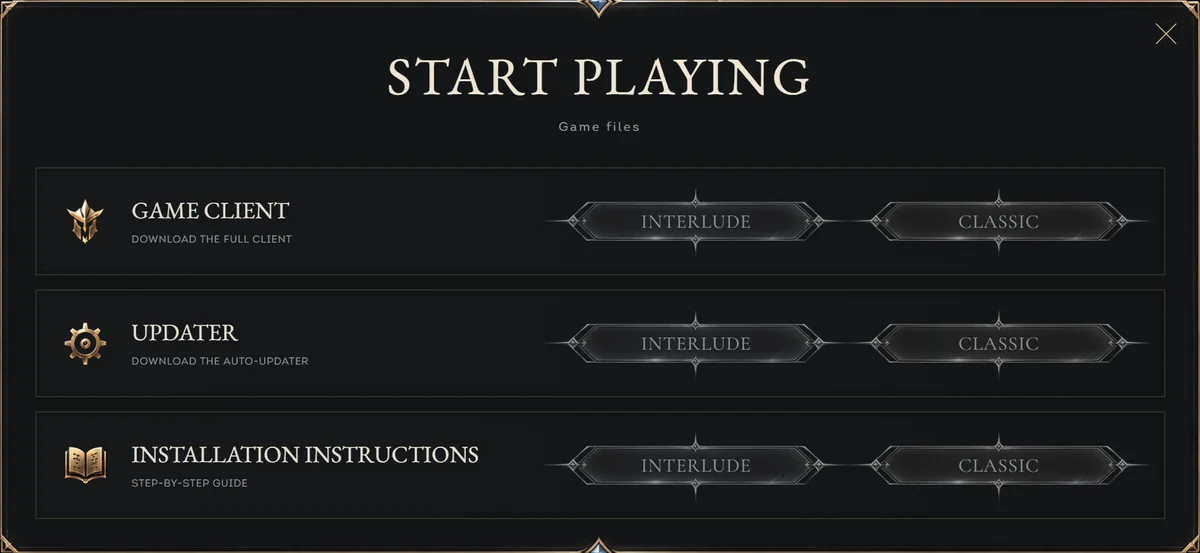
The L2EIRIN.exe launcher downloads updates and starts the game — one for both clients. In the “Start playing” window it is in the UPDATER row. You can get it while the client is still downloading.
If Windows shows “Windows protected your PC”, click “More info” → “Run anyway”.
Create a game folder, for example C:\Games\L2Eirin, and inside it a folder named exactly interlude_clientclassic_client. Extract the archive into C:\Games\L2Eirin\interlude_clientC:\Games\L2Eirin\classic_client (right-click → “Extract All…”, or 7-Zip / WinRAR).
Put L2EIRIN.exe into the game folder itself — next to interlude_clientclassic_client, not inside it: the launcher looks for the client in the interlude_clientclassic_client folder next to itself. The Interlude archive also has an L2EIRIN.exe — use the one you downloaded and delete that one.
You can also skip the archive: if the interlude_clientclassic_client folder is empty, the launcher downloads the whole client into it file by file.
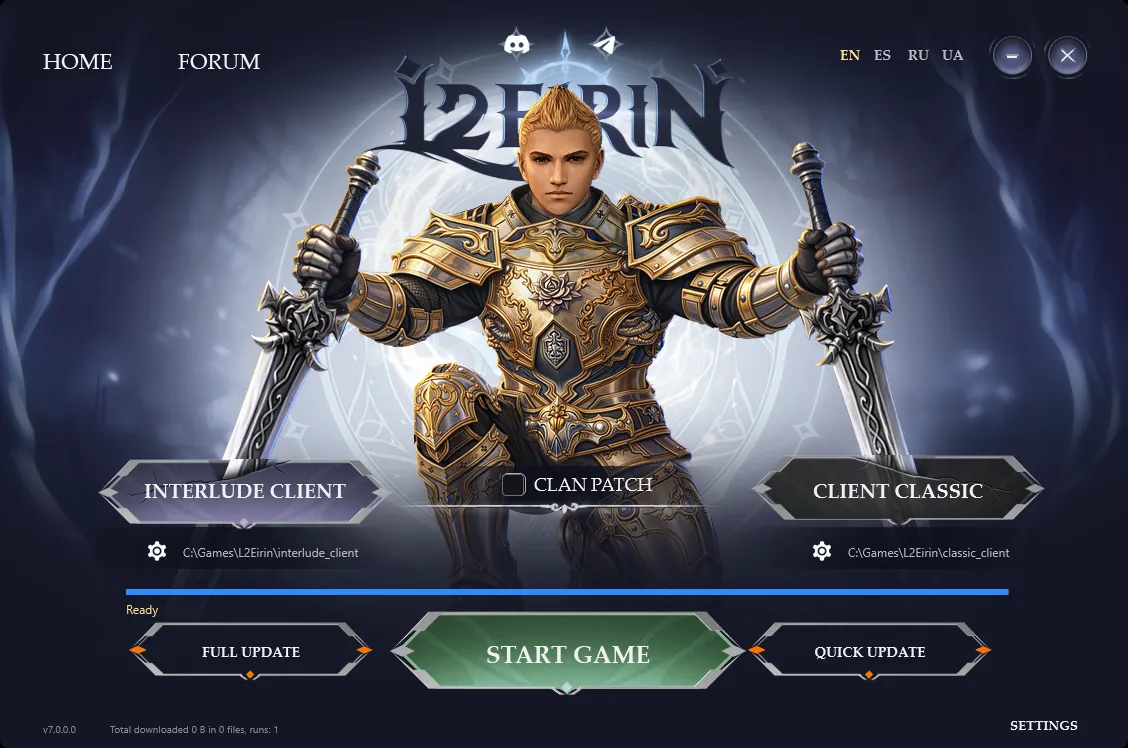
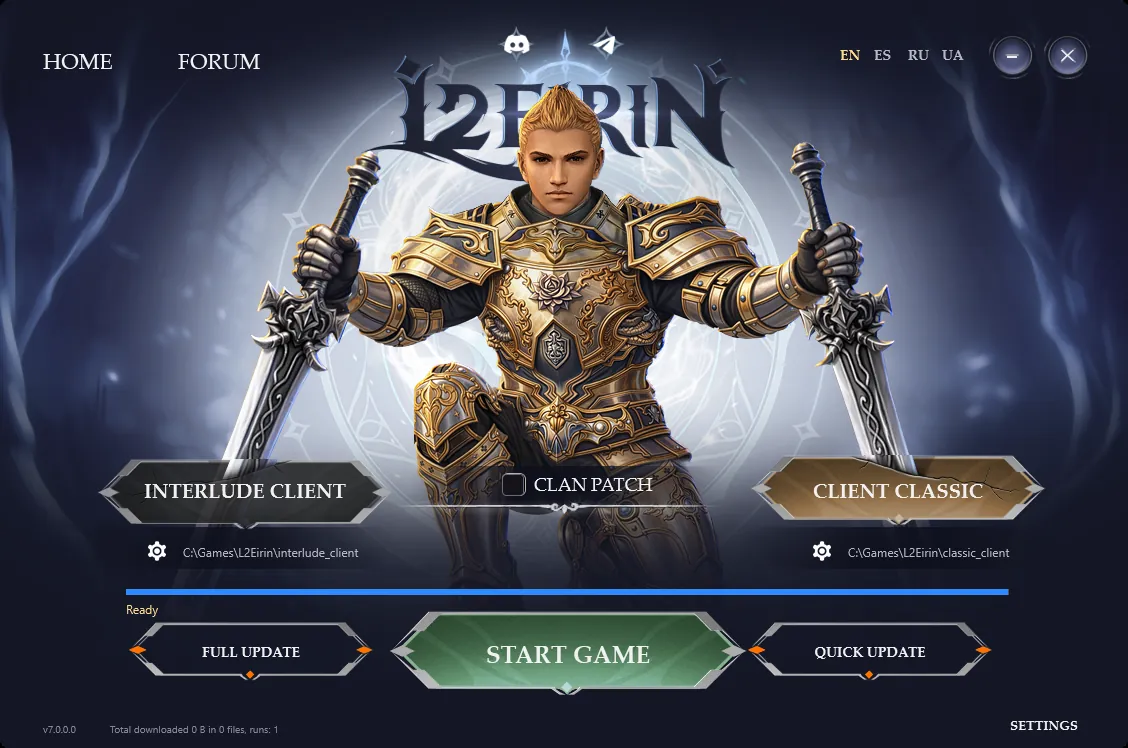
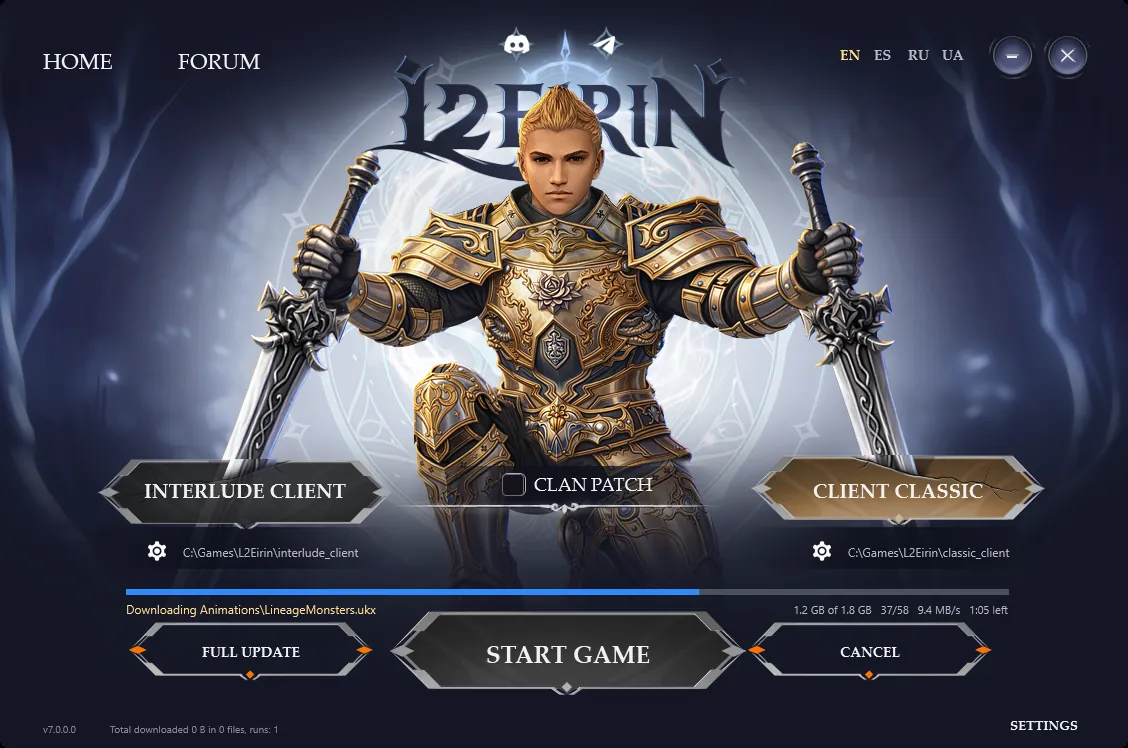
Run L2EIRIN.exe. If it offers to update itself to a new version, agree. Click the INTERLUDE CLIENTCLIENT CLASSIC plate — it lights up. The path below it should be C:\Games\L2Eirin\interlude_clientC:\Games\L2Eirin\classic_client.
Different path? Click the gear next to it and choose the C:\Games\L2Eirin folder — the one that contains interlude_clientclassic_client, not interlude_clientclassic_client itself.
Right after start the launcher checks the chosen client and downloads what is missing. If it started downloading the wrong client, click CANCEL and choose the right one.
The languages at the top right (EN ES RU UA) switch the launcher and the game: RU and UA install the Russian client files, EN and ES the English ones.
 123
 123
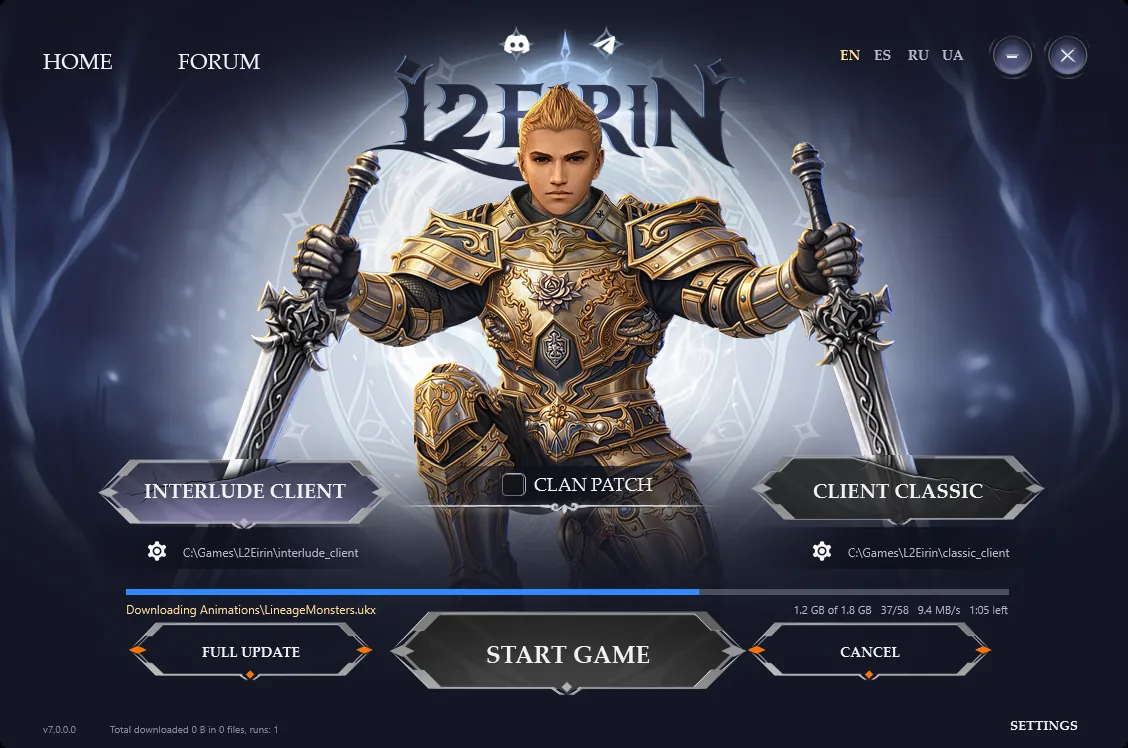
On the first install, delete the system folder inside interlude_clientclassic_client — the launcher downloads it again in the current version. Then click FULL UPDATE: the launcher verifies the checksums of all files and downloads the changed ones.
The current file, speed and time left are shown above the buttons. Do not close the launcher until the bar is full and “Ready” appears. If the disk is short of space, the launcher warns you before downloading.
The CLAN PATCH box turns on the clan patch, an extra set of client files. If nobody asked you to turn it on, leave it empty.
 123
 123
While the client is not updated, the START GAME button is grey. When “Ready” appears, click it and log in with the login (prefix included) and the password from step 1.
We post server updates in Telegram and Discord. Each time it starts, the launcher quickly checks the files and downloads anything new — wait for “Ready”. You can check again with QUICK UPDATE. There is no need to download the client again. If the game acts strangely after an update, run FULL UPDATE again.
1212The InterludeClassic client is installed. If something does not work, check the section below or write to us.
The launcher does not see the extracted client. The client must be in the interlude_clientclassic_client folder inside the folder chosen with the gear (by default, the folder where L2EIRIN.exe is). Click CANCEL, rename the client folder to interlude_clientclassic_client or choose the right folder with the gear.
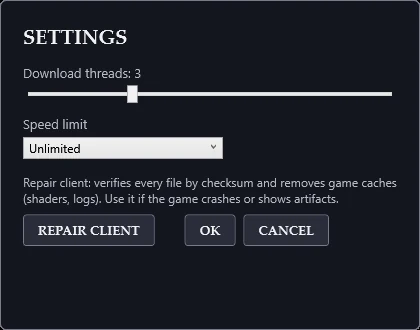
Close the game, open SETTINGS in the launcher (bottom right) and click REPAIR CLIENT: the launcher clears the game caches and verifies every file by checksum. Still not working? Write to us on Discord and attach a screenshot of the error.
Antivirus programs sometimes flag the game protection files by mistake. Add the game folder to the antivirus exclusions (in Windows Security: “Virus & threat protection” → “Manage settings” → “Exclusions”) and run FULL UPDATE to restore the deleted files. Download the launcher only from l2eirin.com.
This is Smart App Control blocking one of the game files. Open Windows Security → “App & browser control” → “Smart App Control settings”, choose “Off”, then click START GAME again.
Close the game if it is running, then right-click L2EIRIN.exe → “Run as administrator”. If the game is in Program Files, move the game folder together with L2EIRIN.exe, for example, to C:\Games.
In the launcher SETTINGS you can raise the number of download threads (up to 8) and make sure no speed limit is set. You can stop the update with CANCEL — the launcher downloads the rest on the next start.


